📖 Folio Reader
How to Add Your Saves To Favorites
Learn how to organize your saves by adding them to your favorites to easily access your preferred content and quickly return to important items.
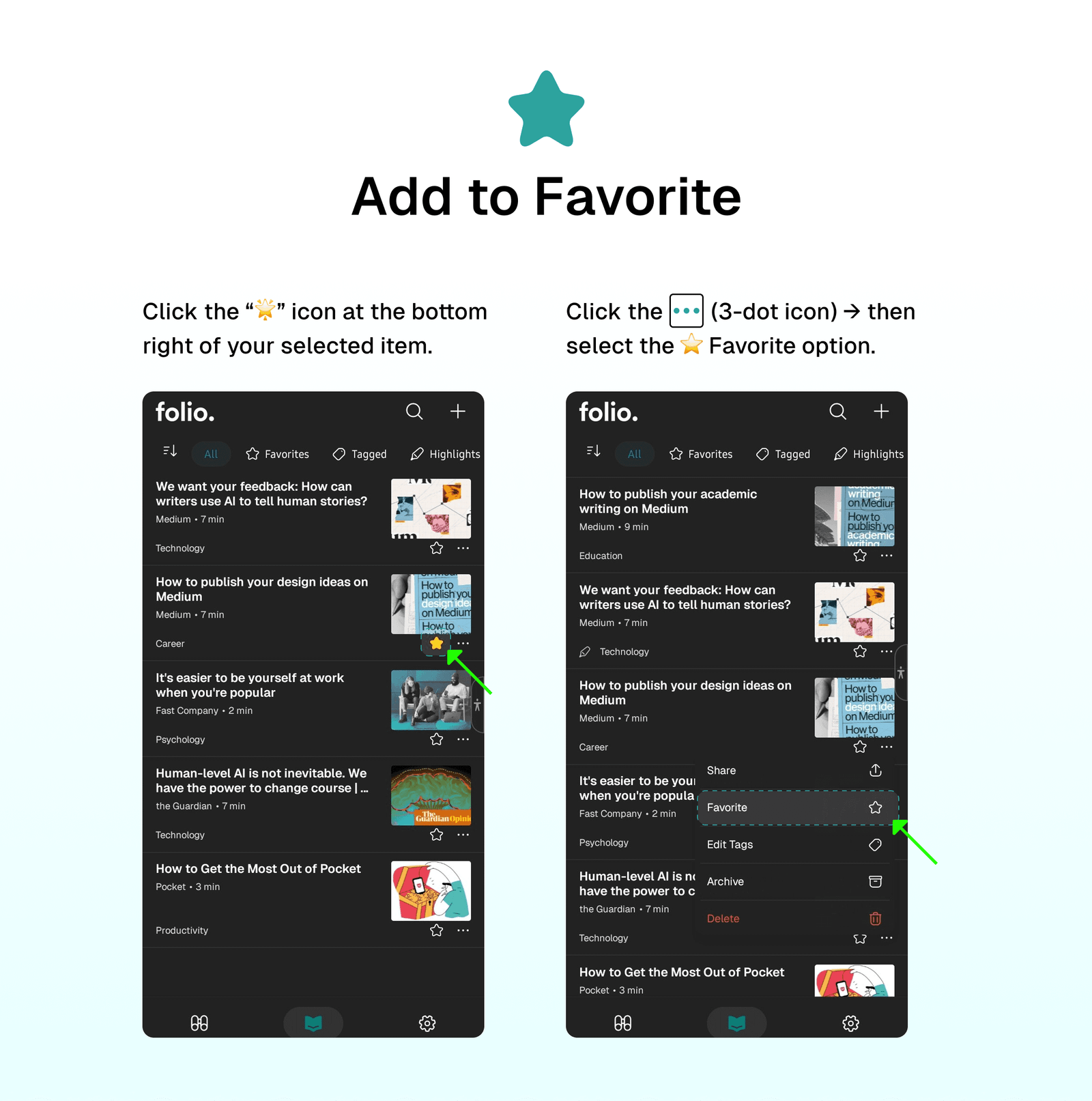
🌟 Add To Favorites
There are two ways to add an item to your Favorites tab:
- Click the “🌟” icon at the bottom right of your selected item.
- Click the
...(3-dot icon) → then select the⭐ Favoriteoption.
⭐ Remove From Favorites
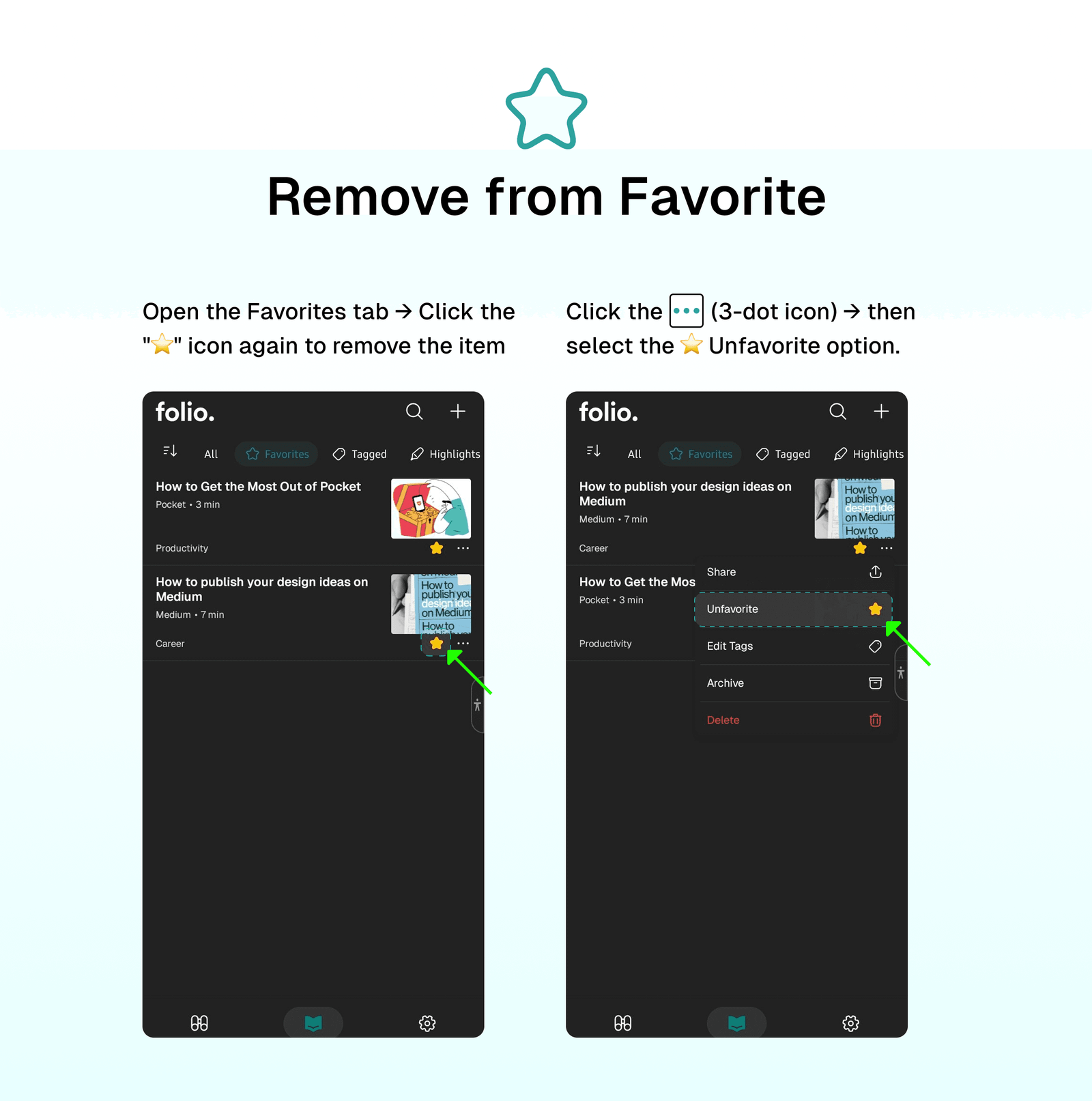
There are two ways to remove an item from the Favorites tab:
- Open the Favorites tab → Click the "⭐" icon again to remove the item.
- Open the Favorites tab → Click the
...(3-dot icon) → Select the⭐ Unfavoriteoption.
⁉️ FAQs
Last updated on
Folio Reader Tabs
Leverage the power of Folio Reader tabs to organize and manage all your content in one place. Folio Reader has tabs that allow you to focus on what you need to read more quickly and easily.
How to Add Your Saves To Archive
Learn how to keep your Reader clean by adding read items to the archive. This stores all your customizations across all your items, including highlighted and tagged content.